
The screenshots show the Simplified Chinese interface. Button names in your language may differ.
Before you subscribe
Make sure you can sign in to the ChatGPT account you want to upgrade. The top-up goes to your existing account, as identified by the session data you submit.
Check for an active paid subscription on that account, such as a Plus subscription from the App Store. Wait for it to expire or cancel it first to avoid a conflict.
AI Top-Up is an independent third-party service with no authorization or partnership from OpenAI. For a direct subscription, check the payment options in ChatGPT checkout or your mobile app store.
Step 1. Choose a plan and enter your phone number
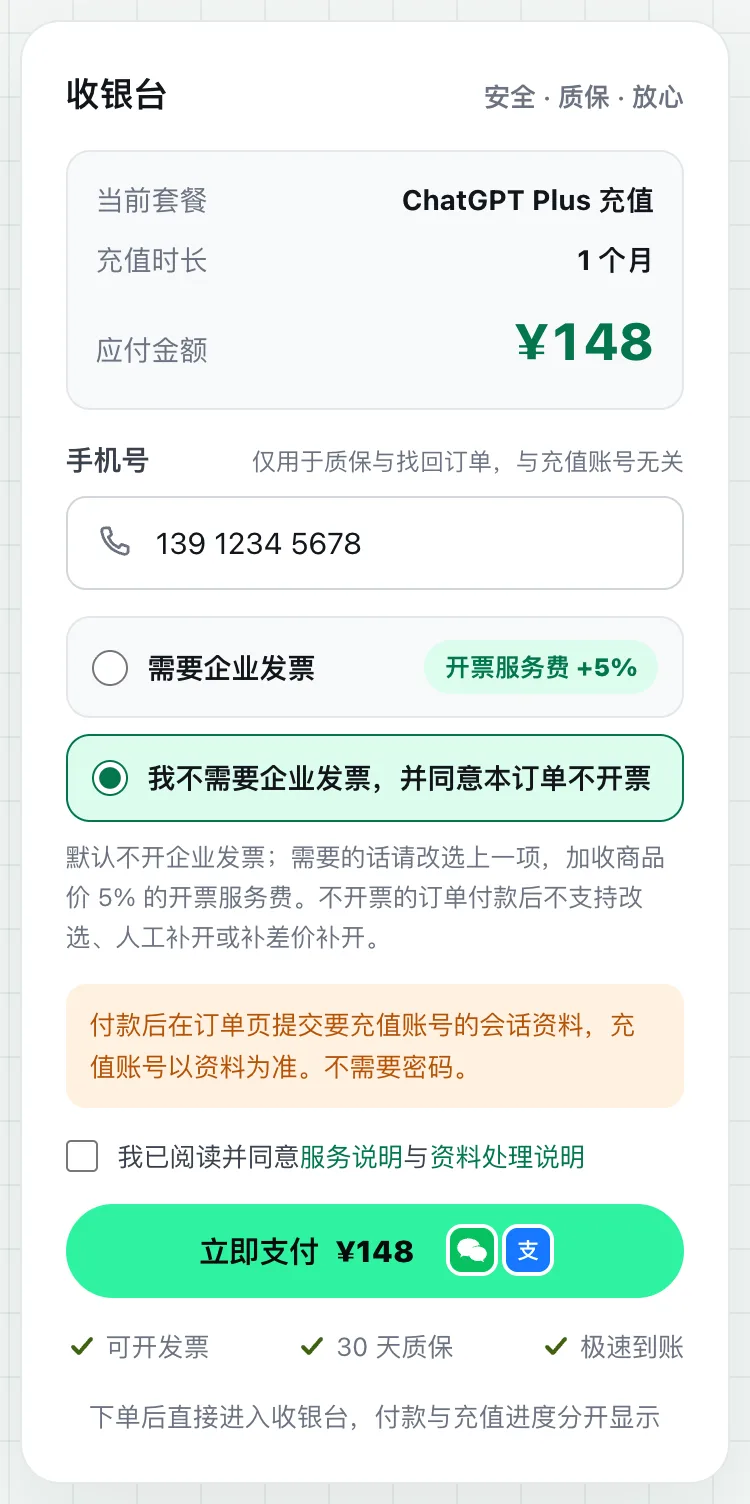
Choose “ChatGPT Plus top-up” on the home page. The checkout panel shows the plan and amount due. On mobile, tap “Order now” at the bottom. The form asks for:
- Phone number. Enter the phone number you use for WeChat. It is used for warranty support and order recovery, independently of the account you are upgrading.
- Company invoice. The default is no invoice. For reimbursement, select “I need a company invoice” at this step. Invoices cannot be added after payment. See the company invoice guide.
Accept the service terms and data handling notice, then select “Pay now.” Complete the Cloudflare verification if prompted.
Step 2. Pay with WeChat Pay or Alipay
On the payment page, choose WeChat Pay or Alipay. Your stock reservation lasts for the 10-minute payment window. An unpaid order closes automatically at the end of the window without a charge.
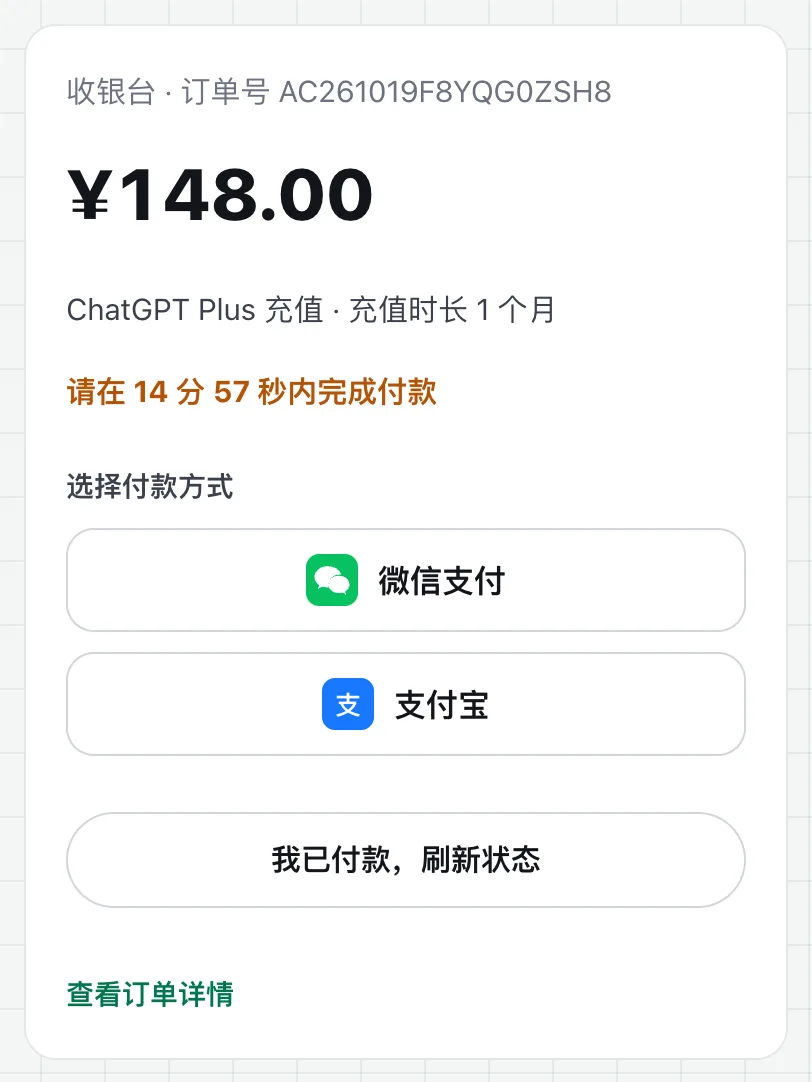
- When the site is open inside WeChat, use WeChat Pay or switch to a browser to use Alipay.
- After paying, return to the payment page and select “I’ve paid, refresh status” to check the result.
- Keep using the same order while paying. If you pay twice for the same order, the extra payment is returned to its original payment method.
Step 3. Submit your session data on the order page
Once payment is received, the order status changes to “Needs session data” and the “Submit your session data” form appears.
- Sign in to chatgpt.com in a desktop browser and verify you are using the account you intend to upgrade.
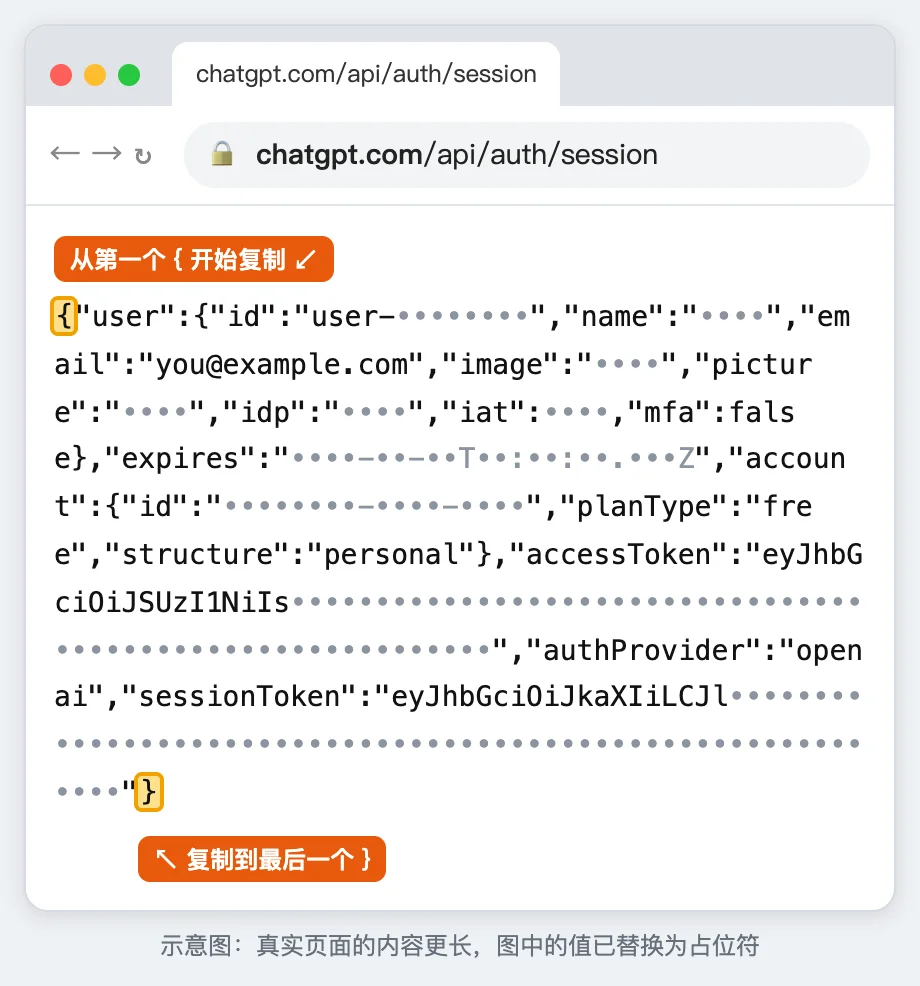
- Open a new tab in the same browser and go to chatgpt.com/api/auth/session.
- Select all the text from the first opening brace to the last closing brace. Use Command+A on Mac or Ctrl+A on Windows, then copy it and paste it into the form on your order page.
- Accept the data handling notice and select “Submit your session data.”
The order page shows the data handling notice and asks for your consent before submission. After submitting the data, review the account and confirm the top-up.
If you copy only part of the text, such as accessToken, the form will ask you to paste it again. If the page is blank, verify that you are signed in to the right ChatGPT account in the same browser, then reopen the address.
The session data guide explains what session data contains, which fields AI Top-Up retains, and when they are deleted. The process does not require a password.
Step 4. Review the account and confirm the top-up
After you submit the data, the system takes a few seconds to check your current plan before starting a top-up. The order page shows the full account email, its current plan, and the plan you purchased. Check the details, confirm the current plan has expired, and select “Confirm top-up.”
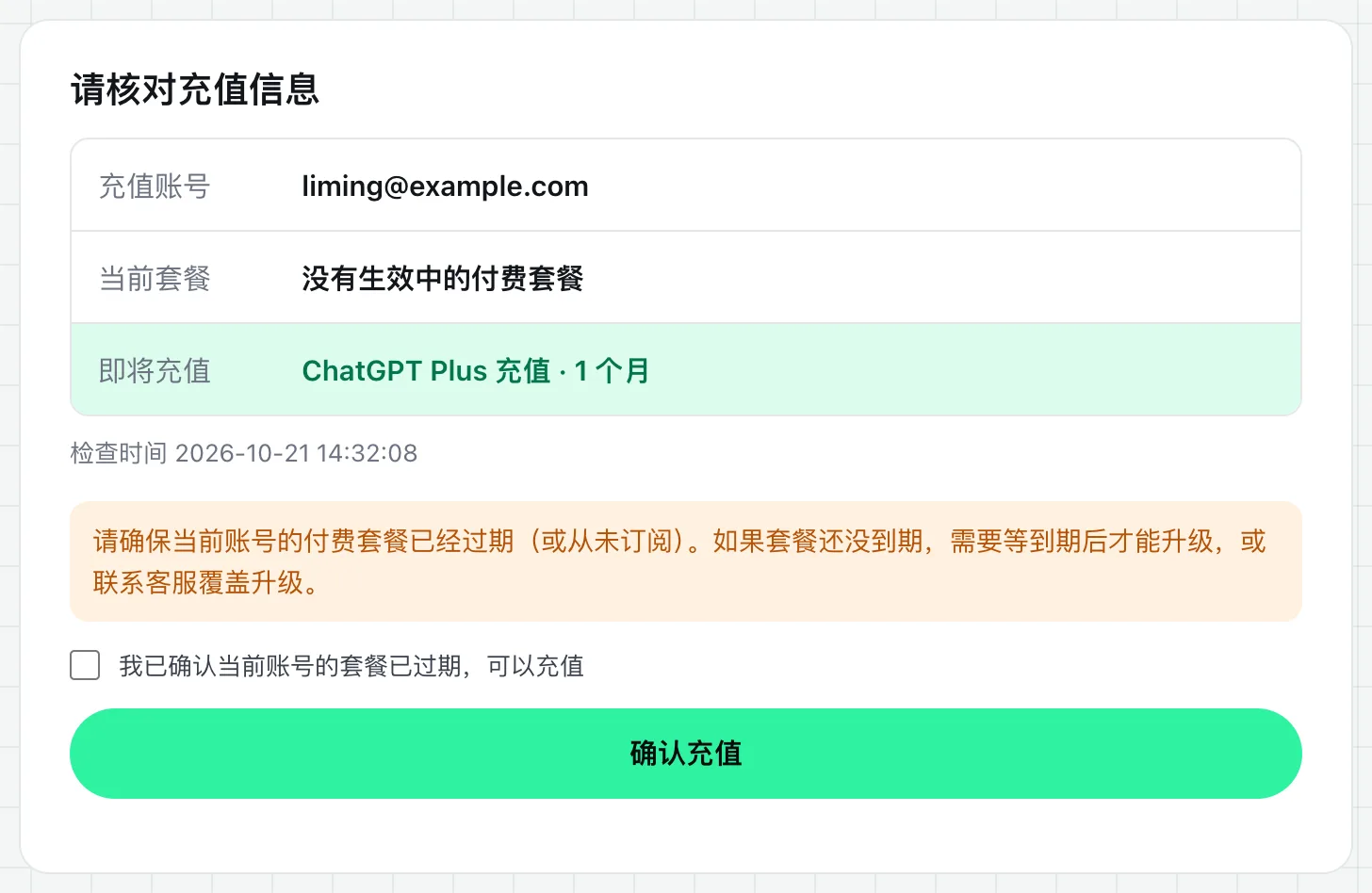
If a plan is still active, the order page shows its expiration date and pauses the top-up. Return after expiration and select “My plan has expired, check again,” or contact support about upgrading over an active plan. Your payment remains on the order. If auto-renewal is enabled, cancel it in ChatGPT first.
Step 5. Wait for the top-up to complete
A top-up usually takes 3–5 minutes after confirmation. The order page refreshes automatically, moving from “Topping up” to “Completed.”
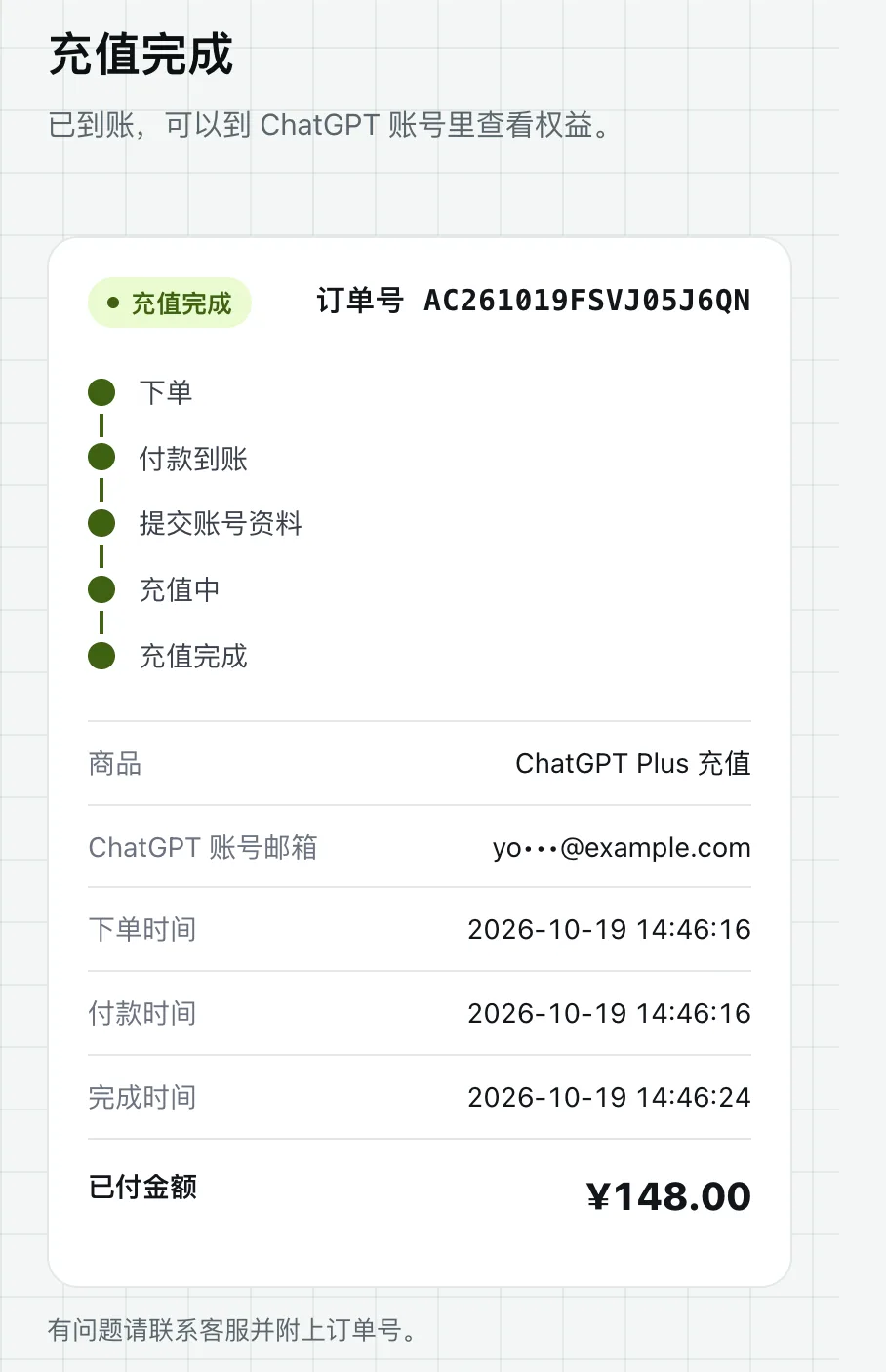
When the order shows “Completed,” refresh ChatGPT to see the active subscription.
If your order gets stuck
| Order status | What it means | What to do |
|---|---|---|
| Awaiting payment | Payment has yet to arrive | Pay before the timer expires. If you already paid, select “I’ve paid, refresh status.” |
| Needs session data | Payment received, session data required | Follow step 3 to submit the data. |
| Awaiting confirmation / Cannot top up yet | The account’s current plan has been checked | Review and confirm in step 4. If your plan is still active, wait until it expires and check again, or contact support. |
| Under review | The result is pending, for example after a timeout or disconnect | Wait for a manual review. The top-up will not be submitted again until the result is known. |
| Top-up failed | The attempt failed and your payment remains on the order | Support can try again or refund the payment to its original method. |
See the full order status guide. For other issues, contact WeChat support with your order number.